
Node Option Premium: full Drupal content for specific users only

Node Option Premium is a module for people who want to encourage visitors to register on their site.
Node Option Premium lets you show a content teaser to the public but show the full content only to people who are logged in and have a certain role. This is typical of the strategy used by many newspapers and magazines with their paywall.
In this tutorial, we’ll demonstrate how to use this simple, yet effective module.
Step #1. Install Node Option Premium
- Install the Node Option Premium module from http://drupal.org/project/nopremium/
- Go to Configuration > Workflow > Node Option Premium
Step #2. Configuration
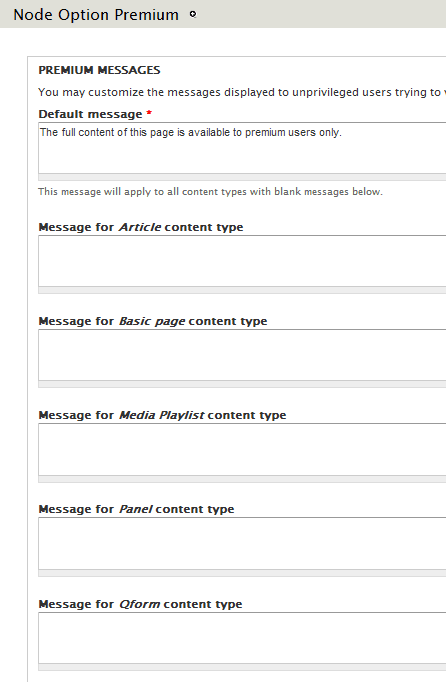
The main task of configuration is to add messages for each content type. There’s a sample already filled in for you, which will be displayed for all content types. However, you might want to customize it for specific types, for example: “Full content of this page is only available to paid subscribers. Click here to join our site and get full access to these articles” or videos or pages, etc. Simply write the custom message in the appropriate field. You can use HTML to make Click here an active link.

Step #3. Permissions
- Go to People > Permissions
- There is a set of permissions specifically for Node Option Premium as you can see below.

Here’s what you need to know about these permission options:
Who can fully view a premium node of a particular content type?
- Any user with the View full premium content permission
- Any user with the administer nodes permission
- The author of the node
- Any user with the edit any NODE_TYPE content permission
Step #4. Set up the content type
- Go to Structure > Content types and create or edit a new content type.
- Go to the Edit tab
I’m going to edit the Article content type. The goal is to make it so the public will be able to read the teaser, but when they click to read more, they’ll get the message that we defined during configuration.
- Click the check box next to Premium Content.
Click Save content type.


What is the difference between Premium Content and Node Option Premium?
Thanks for this article. I would like to provide certain roles with access to 10 nodes of a specific content type and then stop their access. Is there a way to do that with this module? Thanks, Michael
Searching for a solution for drupal 8. Any Ideas